How to Set Up Your Digital Planner for 2027
New planner, fresh start! Here's how to set up your 2027 digital planner, from choosing a layout and adding important dates to goals, budgets and habits.
There’s nothing quite like opening a brand-new planner for a brand-new year. Fresh pages, a clean slate, and so much possibility!
A little setup now makes the whole year easier. Spend an hour or so getting your planner ready, and every week after that is simpler to plan.
This guide walks you through it step by step. The examples use the THISS 2027 Digital Planner, but the same steps work with most dated digital planners.
In a nutshell
- Choose the version that suits how you plan: portrait or landscape, Monday or Sunday start, and your favorite weekly layout.
- Add the year’s important dates before anything else.
- Set a few goals and projects, then break them into monthly steps.
- Set up your budget, savings and habit pages while January is still quiet.
- Finish with a simple weekly planning routine you can keep.
Before you start: import your planner
If you haven’t opened your planner yet, start by importing the PDF into your note-taking app, such as Goodnotes or Notability. The getting started guide shows you how, step by step.
Keep the original PDF saved in your Files app too. That way, you can always import a fresh copy if you ever need one.
One tip for Goodnotes: switch on Read Only Mode (the mode icon in the top bar) whenever you want to tap the links and tabs, then tap it again to go back to writing. Here’s more on how to use a digital planner in Goodnotes.
Step 1: Choose the layout that suits you
A planner only works if you enjoy using it, so it’s worth choosing the version that fits the way you plan.
- Portrait or landscape: it mostly comes down to how you hold your iPad. Here’s how to choose between portrait and landscape.
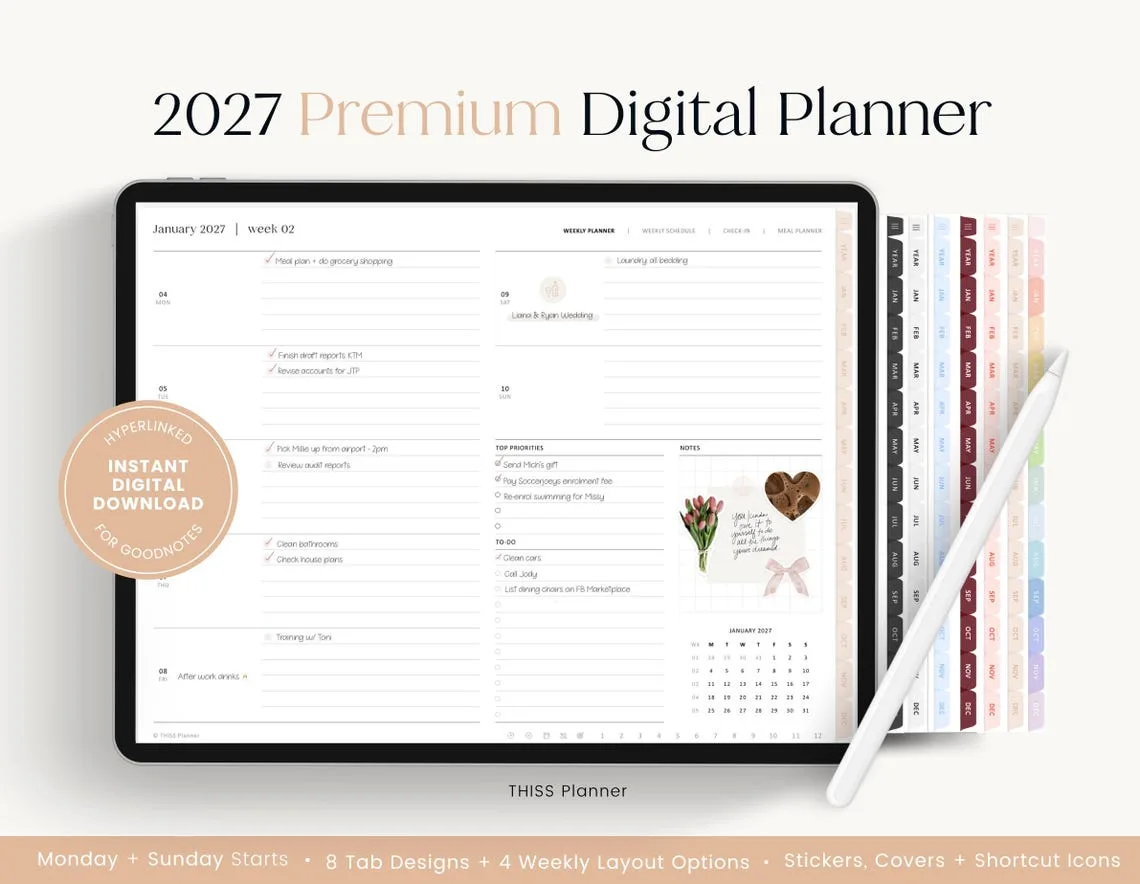
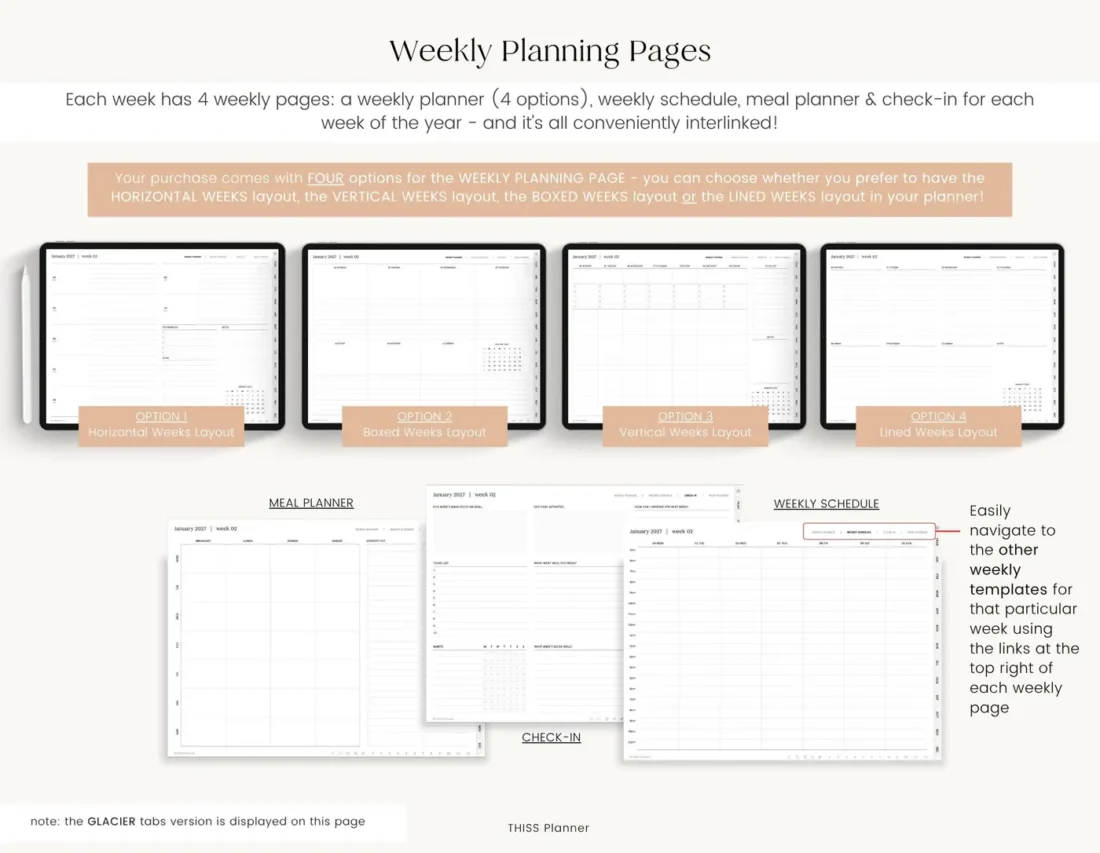
- Weekly layout: the THISS 2027 planner comes with four weekly layouts in the one download: horizontal, vertical, boxed and lined weeks. Horizontal suits lists, vertical suits a busy schedule, boxed suits a bit of both, and lined gives you the most writing room.
- Tab color: there are eight to choose from, so pick the one you’ll love opening every day.
Step 2: Pick a Monday or Sunday start
Both are included in the 2027 planner, so choose the one that matches how you think about your week.
- Monday start keeps the weekend together at the end of the week, which suits many work and school schedules.
- Sunday start suits you if Sunday is when your week begins, or when you like to plan and reset for the days ahead.
There’s no right answer. Pick one and stick with it, so your weeks always look the same.
Step 3: Add the year’s important dates
Before you plan a single week, fill in the dates you already know. It’s the most useful 20 minutes you’ll spend on your planner all year.
- Birthdays and anniversaries.
- Public holidays and school breaks.
- Vacations, trips and family events.
- Bill due dates, renewals and appointments.
- Work deadlines or busy seasons.
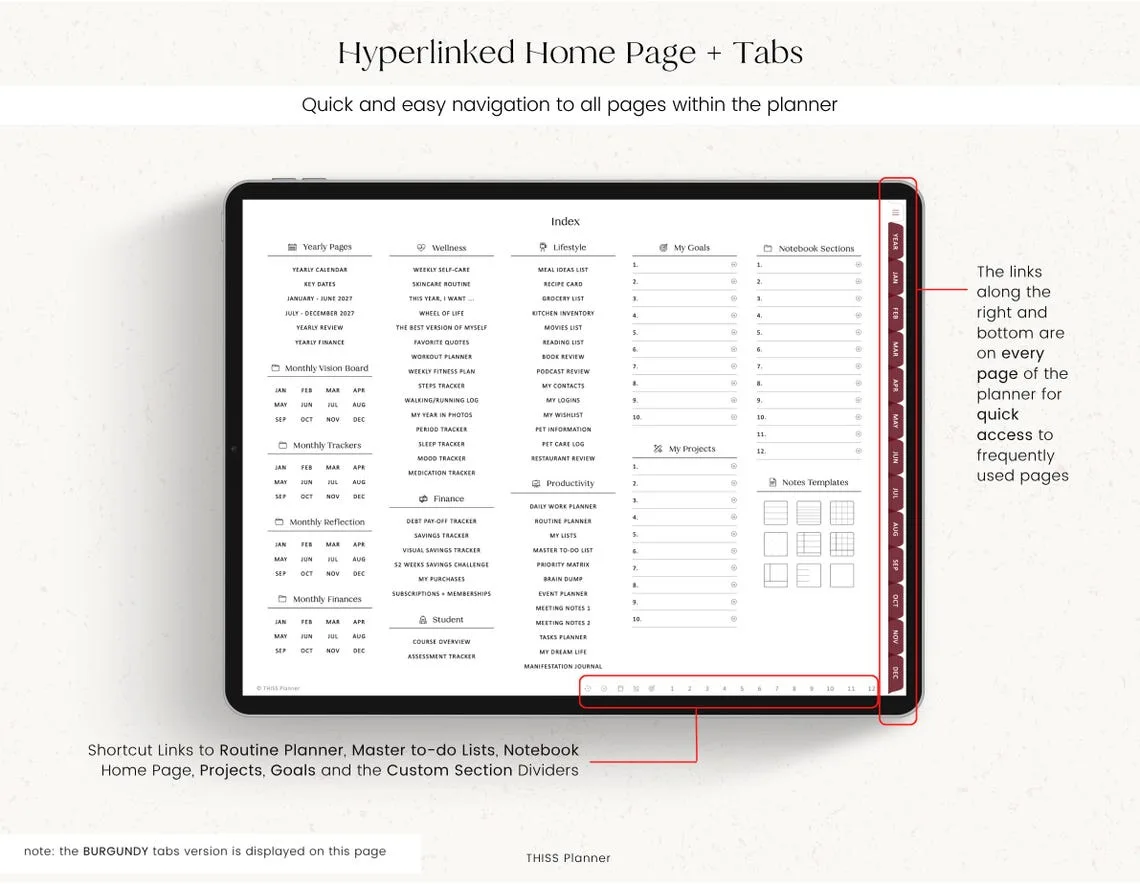
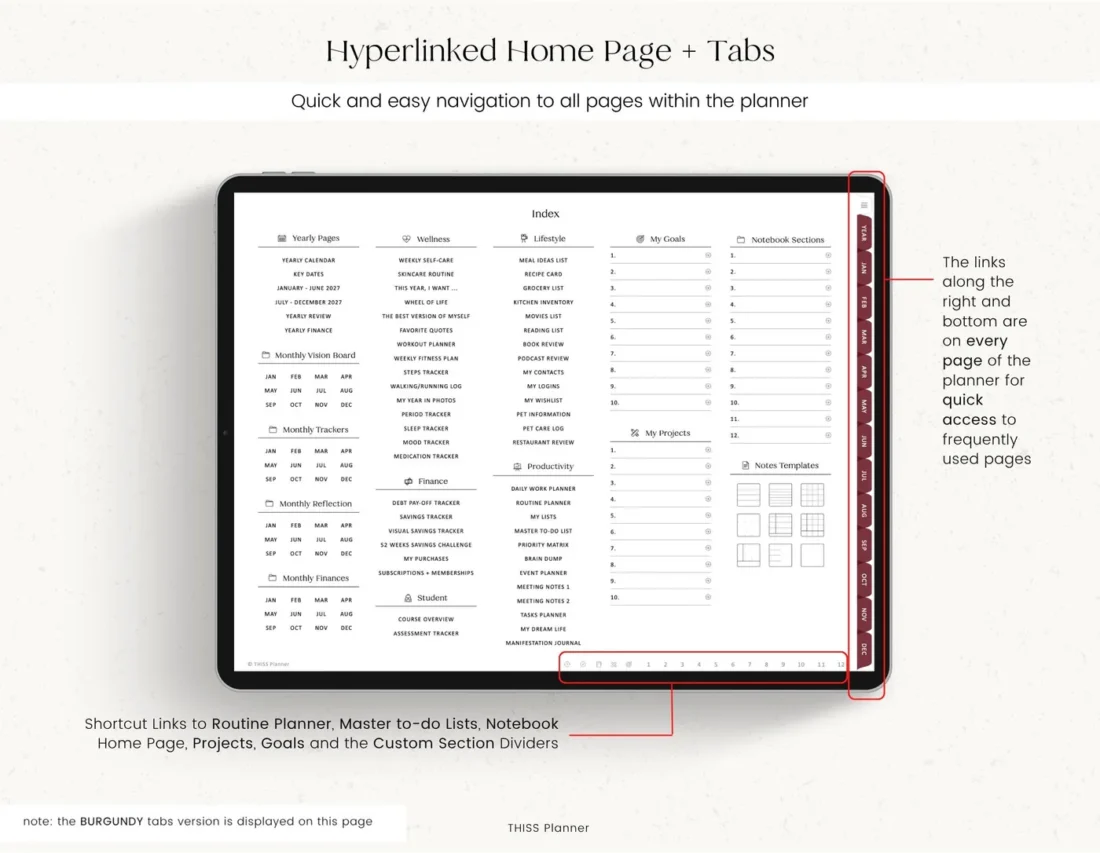
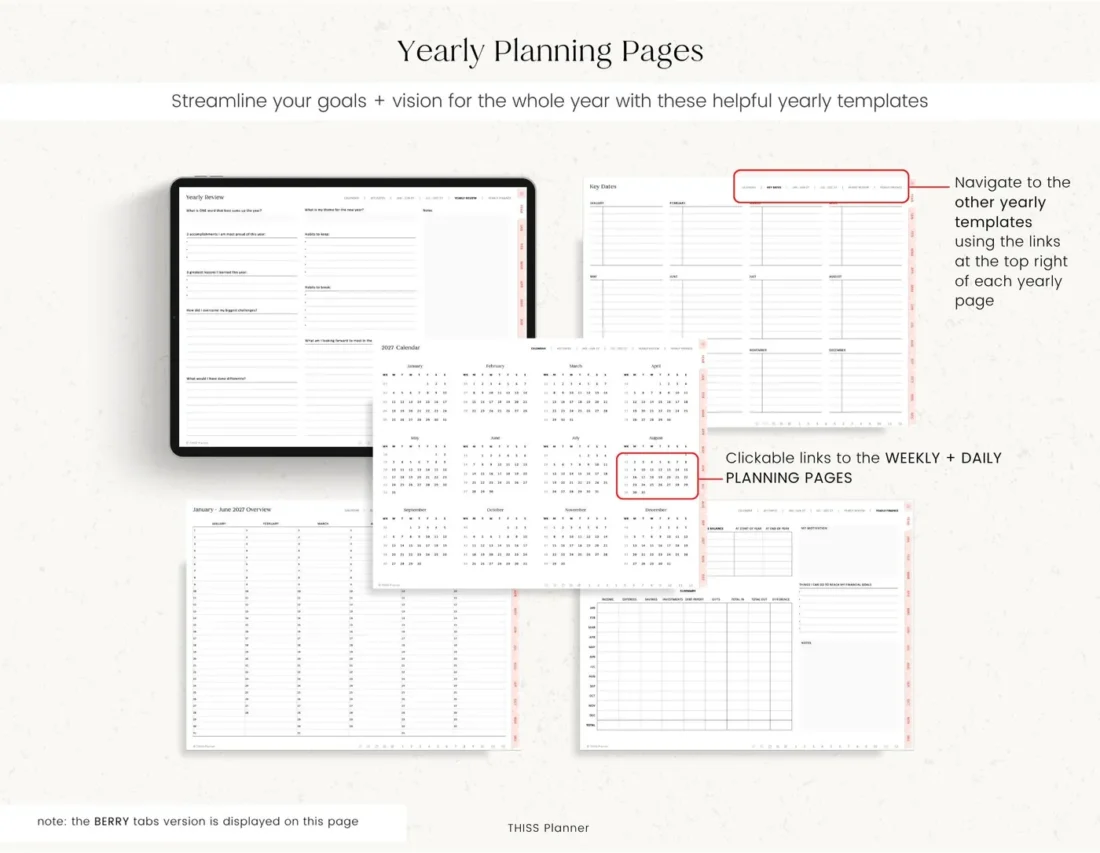
Add them to your yearly pages first, so you can see the whole year at a glance. Then copy each one onto its monthly page. In the THISS planner, the yearly overview and year at a glance pages are made for this, and the subscriptions and memberships page is a handy place to note renewal dates.
Step 4: Get your monthly and weekly pages ready
You don’t need to fill in the whole year. Set up January properly, then do each new month as it arrives.
- Monthly pages: copy across the month’s dates, then add a short list of what you want to focus on.
- Weekly pages: for the first week, block in fixed commitments like work, school runs and classes.
- Daily pages: use them on the busy days, and skip them on quiet ones. You don’t have to use every page.
In the THISS 2027 planner, every week also has a weekly schedule, a check-in and a meal planner, so you can plan the week, review it and sort out dinners in one place. (Here’s how to create a weekly meal plan that actually works.)
Step 5: Set your goals and projects
A new year is the perfect time to decide what you’d like the year to hold. Keep it to a few goals you really care about.
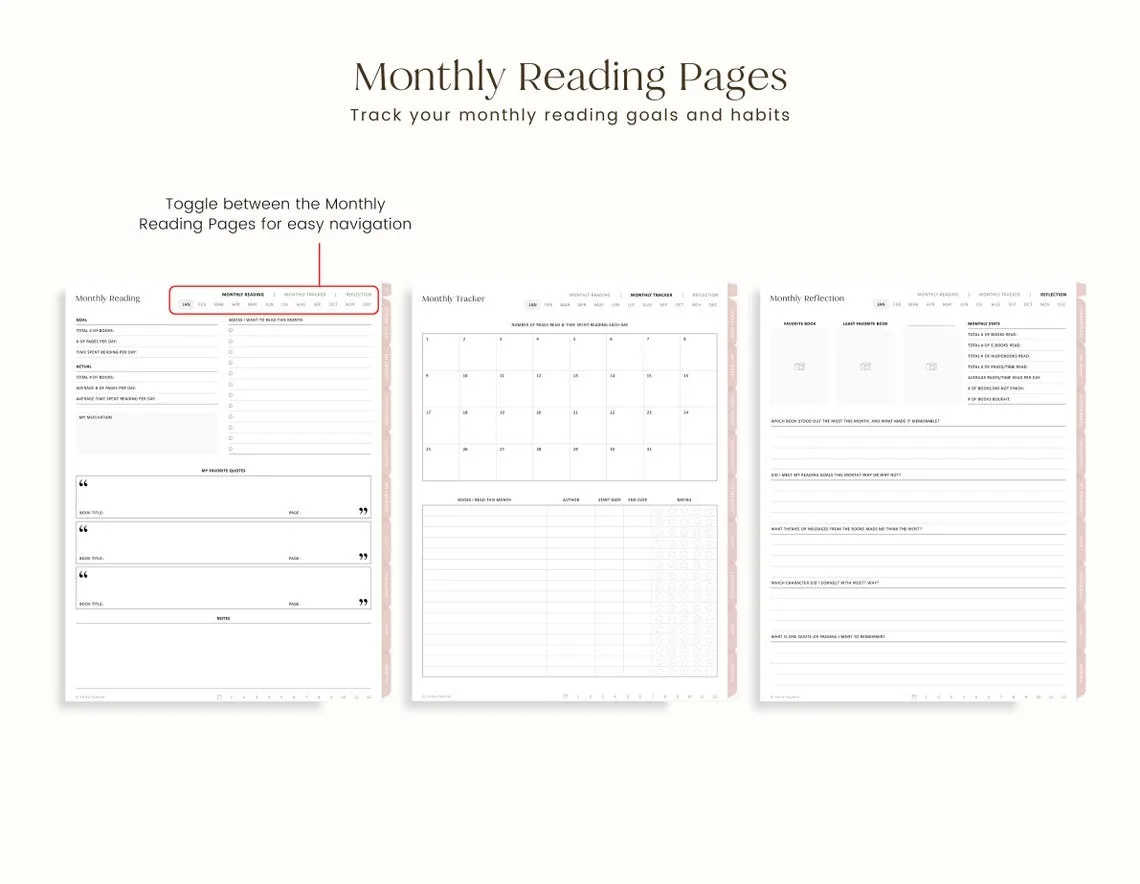
- Write down what you’d love this year to include. The This Year I Want and vision board pages are great for this.
- Pick two or three goals to focus on. (For a bigger-picture plan, here’s how to plan your year.)
- Break each goal into smaller steps, and add the first steps to January.
- Give bigger plans their own project page, like a home project, a course or a trip.
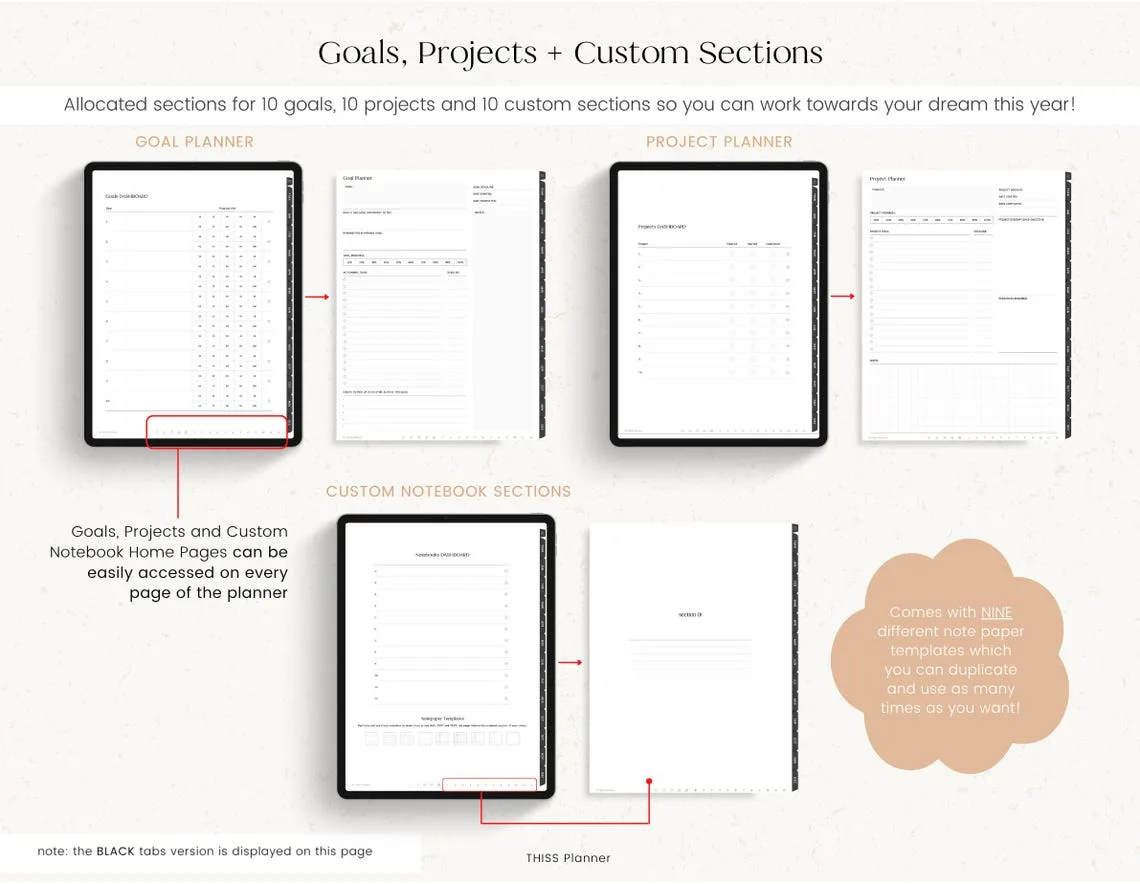
The THISS planner has a My Goals section and a My Projects section, so each goal and project has a home. Need help choosing goals? Here’s how to set goals you will actually achieve.
Step 6: Set up your budget and savings pages
January is a great time to get on top of your money, before the year gets busy.
- Yearly finance: jot down your big costs for the year, like insurance, holidays and gifts.
- Monthly finance: set January’s budget and track your spending as you go.
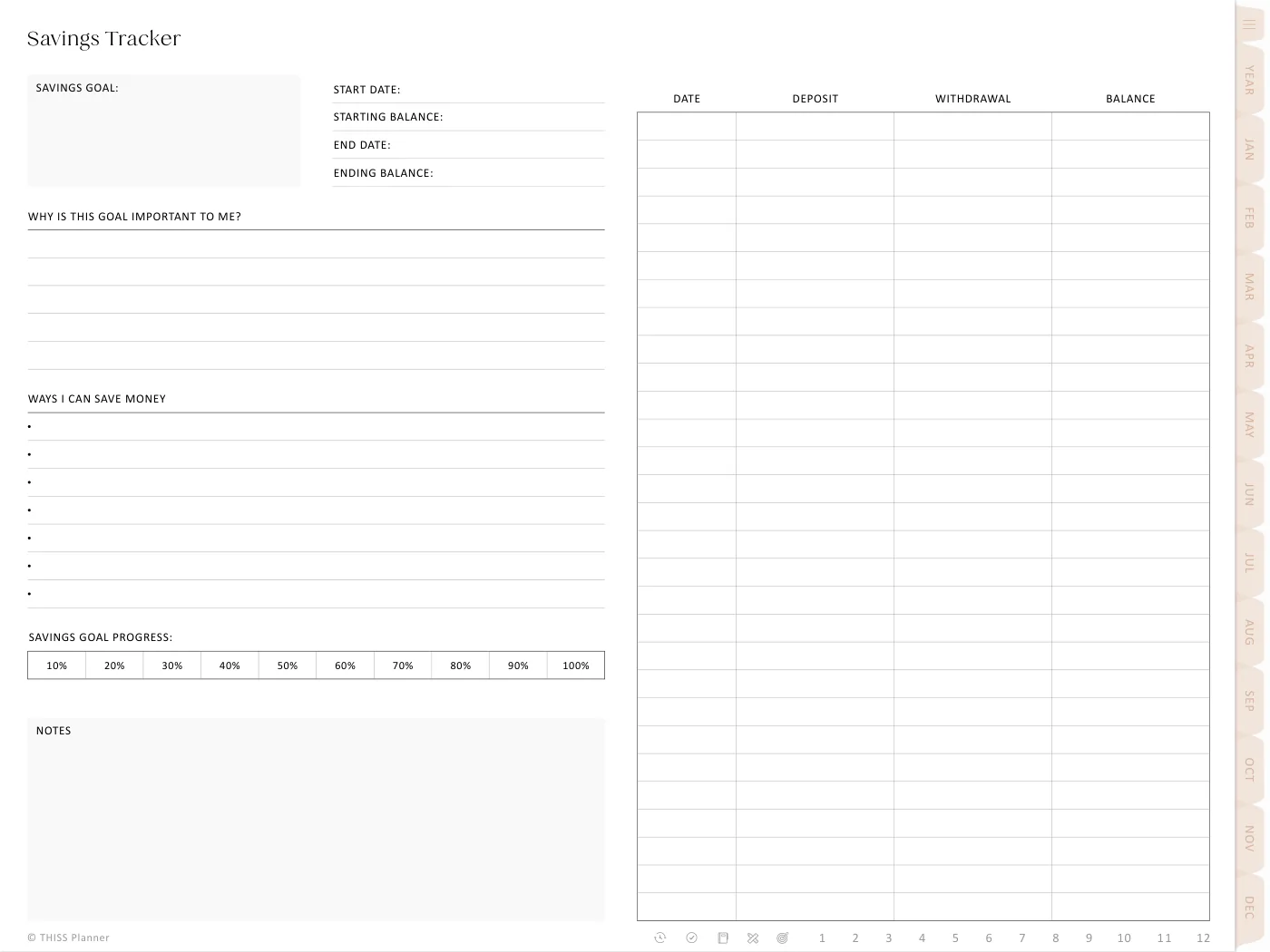
- Savings tracker: add one savings goal, like an emergency fund or a vacation. The 2027 planner also has a visual savings tracker and a 52 weeks savings challenge if you’d like something to color in.
- Debt pay-off: if you’re paying off debt, the debt pay-off and debt snowball trackers help you watch the balance go down.
For a step-by-step guide, here’s how to budget with a digital planner.
Step 7: Choose a few habits to track
Pick two or three habits you’d like to build this year, like drinking more water, reading every night or moving your body. Starting small makes them much easier to keep.
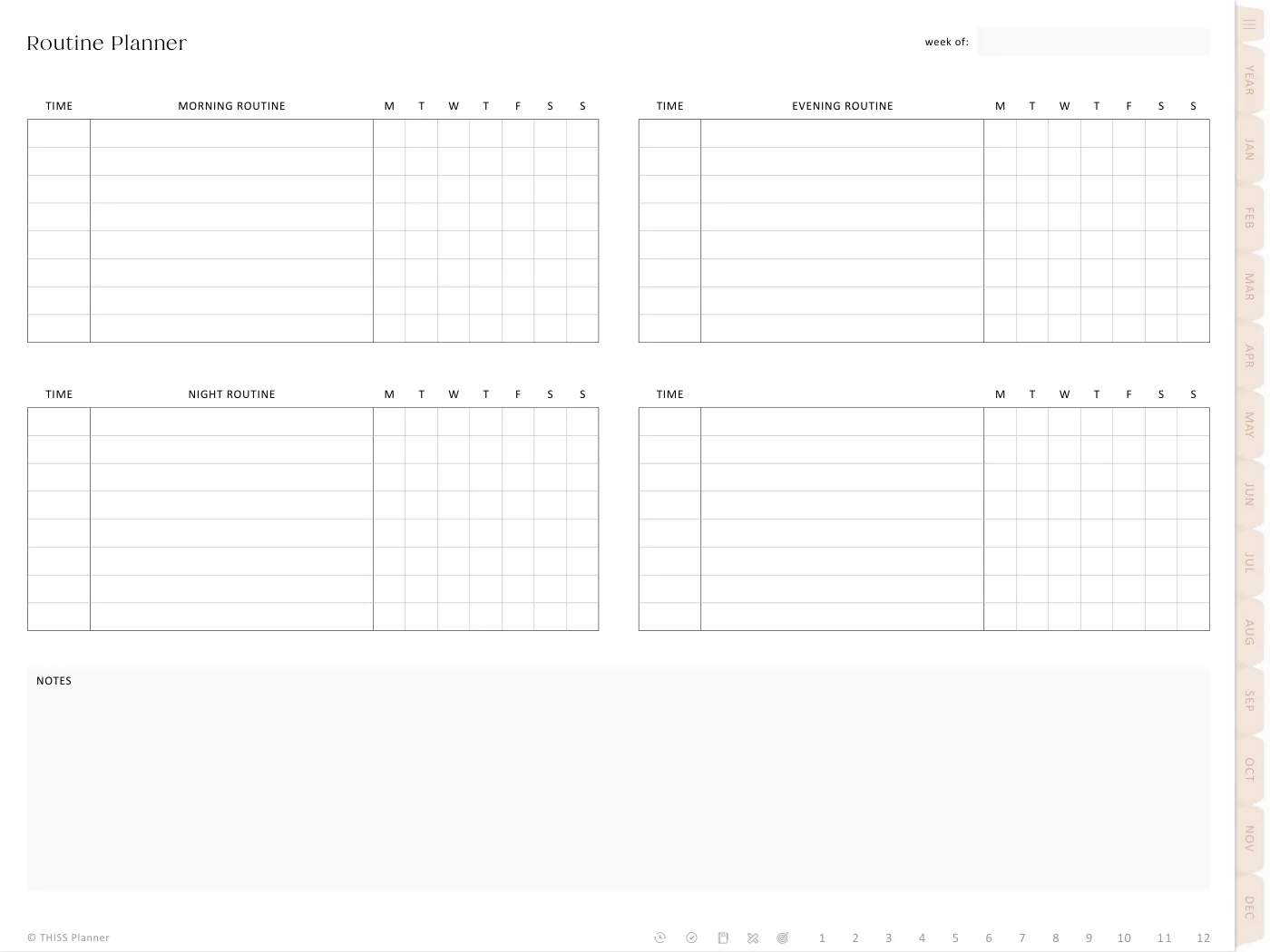
Add them to your habit tracker, and tick them off each day. The routine planner is perfect for morning and evening routines, with a tick box for each day. (If you love the idea of small habits, here’s how Atomic Habits can help you plan every day.)
Step 8: Make it yours
This is the fun part! Choose a cover, add a few stickers, and make your planner feel like your own. The THISS 2027 planner includes 58 covers, six sticker sets and 57 iPad home screen icons. If you’re new to stickers, here’s how to add stickers to Goodnotes.
Step 9: Set a weekly planning routine
The best setup in the world won’t help if you never open your planner, so finish by choosing a time to plan each week. Ten minutes on a Sunday evening or Monday morning is enough.
- Look back at last week: what got done, and what needs moving?
- Check your monthly page for anything coming up.
- Choose your top three priorities for the week.
- Block them into your weekly schedule.
Here’s a full guide to planning your week in a digital planner, plus how to stick with your planner all year.
Common questions
When should I set up my planner for the new year?
Any time in December or early January works. Setting up before January 1 means you can start the year with your dates, goals and budget already in place.
Should my planner start on Monday or Sunday?
Choose whichever matches how you think about your week. Monday suits many work and school schedules, and Sunday suits you if you like to plan the week ahead on Sunday.
Do I need to fill in every page?
No. Use the pages that help you, and skip the rest. Many people use their weekly pages every week and the other pages only when they need them.
How do I keep my digital planner safe?
Keep your original PDF in Files, and back up your planner regularly. Our guide to sticking with your planner includes a simple monthly backup habit.
Happy planning, and here’s to a wonderful 2027! If you haven’t chosen your planner yet, have a look at the THISS 2027 Digital Planner.