How to Import Stickers into Goodnotes (and Add Them to Your Pages)
Got a set of digital stickers and not sure how to get them into Goodnotes? Here's how to import them, add them to your planner pages and keep them organized.
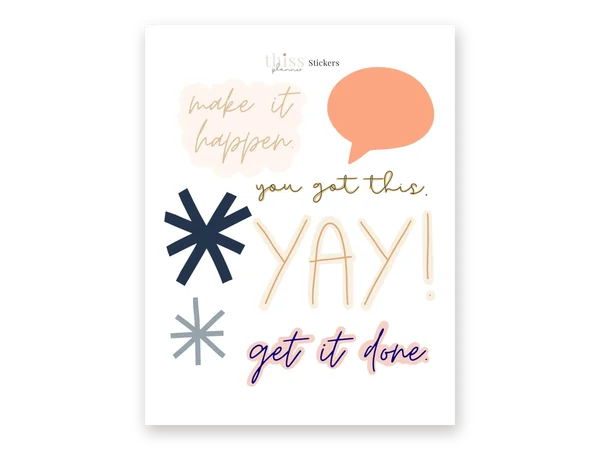
Got a new set of digital stickers, but not quite sure how to get them into Goodnotes?
Don’t stress! It’s easier than it looks, and once your stickers are set up, adding one to your planner takes a single tap.
Digital stickers are such a fun way to decorate your pages, and they make your plans easier to scan at a glance. Here’s exactly how to import them, add them to your pages and keep them organized.
In a nutshell
- Download your stickers and unzip them in the Files app first.
- For PNG stickers, make a sticker collection with the Elements tool. Then any sticker is a tap away.
- For a pre-cropped sticker book, use the Lasso tool to copy stickers, or save your favorites as Elements.
- Resize and rotate any sticker with the Lasso tool.
- Keep one collection per sticker set so they’re easy to find.
What you’ll need
- An iPad with the Goodnotes app.
- Your sticker files. Goodnotes works with PNG and JPG images. PNG is best for stickers, because it keeps the background see-through.
- An Apple Pencil makes it easier, but your finger works too.
Every THISS sticker book comes two ways: a pre-cropped Goodnotes sticker book, and every sticker as its own PNG file. This guide covers both, using the current Goodnotes app on iPad. If your screens look different, update the app first.
Step 1: Download and unzip your stickers
Stickers usually arrive as a ZIP file. Save it to the Files app on your iPad, then unzip it so you can see the individual PNG files. If you bought your stickers on Etsy, here’s how to download your files from Etsy and unzip them in Files.
Step 2: Make a sticker collection in Elements
This is the easiest way to use PNG stickers. Once they’re in a collection, every sticker is a tap away, in any notebook.
- Open any notebook and tap the Elements tool in the toolbar.
- Scroll to the end of your collections and tap +.
- Give your collection a name, like the name of the sticker set.
- Tap Add Photos (if your stickers are in your Photos app) or Import from… (if they’re in Files), then choose the stickers you want to add.
- Tap Create.
Need to add more stickers to a collection later? Select the collection, tap Edit (or touch and hold it, then tap Edit), and choose Add Photos or Import from… again.
Step 3: Add stickers to your planner pages
- Open your planner to the page you want to decorate.
- Tap the Elements tool, then Stickers.
- Choose your collection at the bottom of the panel.
- Tap a sticker to add it, or drag it straight to the spot you want.
That’s it! Your sticker is on the page, ready to move and resize.
Step 4: Use a pre-cropped sticker book
A sticker book is a Goodnotes notebook with every sticker already laid out and cropped. First, import it into Goodnotes the same way you import a planner (the getting started guide shows how). Then you have two ways to use it:
- Copy and paste: select a sticker with the Lasso tool, copy it, go to your planner page, and paste it.
- Save it as an Element: select a sticker with the Lasso tool, open the Object menu, tap More (…), then Create Element, and choose a collection (or make a new one). Now it lives in Elements, so you don’t have to open the sticker book every time.
Saving your most-used stickers as Elements is a real time-saver.
Another option: add a single image
Just want to add one image? Use the Image tool instead.
- Tap the Image tool in the toolbar.
- Choose Photos, or Insert from… to pick a file from Files.
- Drag the image into place.
Want to keep it for later? Tap the image twice and choose Add Element. And if you’ve got a whole sheet of stickers in one image, the Image tool’s crop (rectangle or freehand) lets you cut out just the sticker you want.
Resize, rotate and crop your stickers
- Resize: select the sticker with the Lasso tool and drag a corner handle. Images keep their proportions, so they won’t stretch.
- Rotate: with the sticker selected, drag the rotation control.
- Move: drag the selected sticker to its new spot.
- Crop: use the Image tool’s crop to trim an image.
Keep your stickers organized
- One collection per set or theme, like Functional, Seasonal or Christmas, so you can find stickers fast.
- Tidy as you go: in a collection’s Edit view, drag stickers to reorder them, or tap the X to delete one you don’t use.
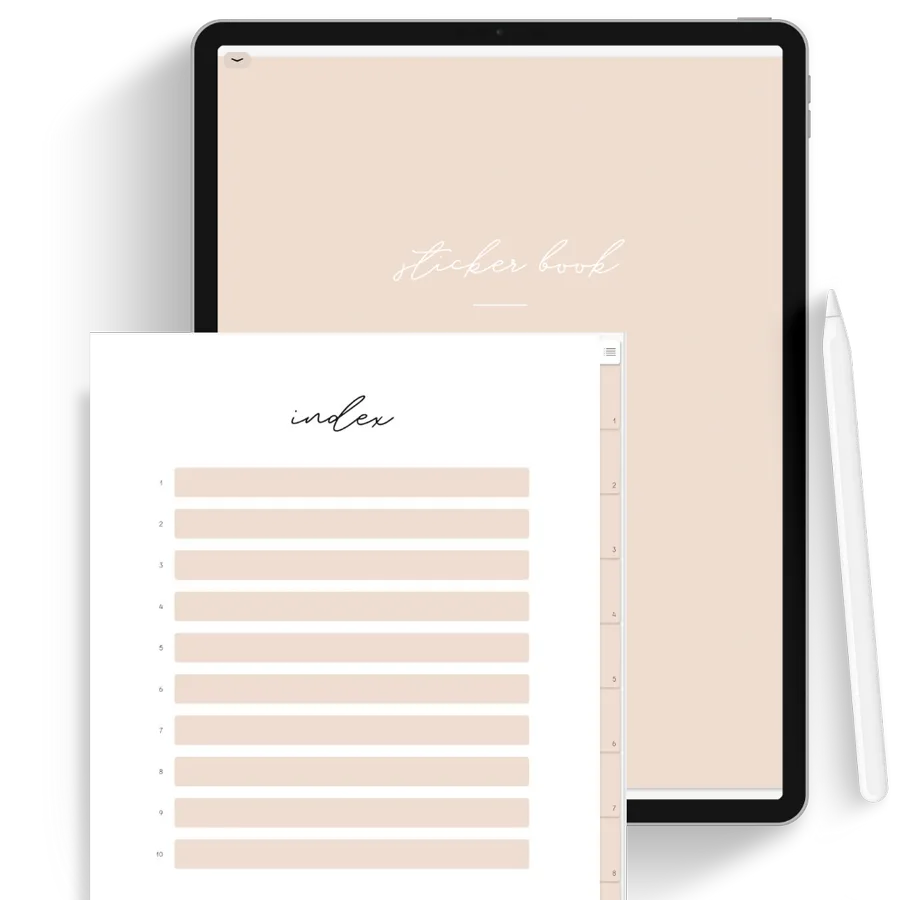
- A sticker book of your own: the free Blank Sticker Books in the THISS library give you a tidy place to keep stickers inside a Goodnotes notebook.
Using Notability instead?
Notability does things a little differently. Use the Add Media tool and choose Photos to place a PNG sticker on your page as an image, then crop or rotate it from its menu. Notability also has its own built-in Stickers in the same Add Media tool.
Common questions
Can you add stickers to Goodnotes?
Yes. Goodnotes works with PNG and JPG images, so you can add stickers through the Elements tool (best for a whole set) or the Image tool (best for a single image).
What’s the quickest way to add a whole sticker set?
If your set comes with a pre-cropped Goodnotes sticker book (every THISS sticker book does), import the sticker book and save the stickers you use most as Elements. For PNG files, add them to a collection with Add Photos or Import from…
Why does my sticker have a white background?
The file is probably a JPG, or a PNG saved without transparency. JPGs can’t have see-through backgrounds, so use PNG stickers for a clean look.
Can I use stickers I find on Pinterest?
Only if you have permission to use them, like stickers you’ve bought or free sets the designer shares for personal use. When in doubt, ask the designer or choose a set with clear terms.
Where can I find free digital stickers?
There are free sticker sets in the THISS free library, including two Christmas sets, plus the free Blank Sticker Books to keep them organized.
Ready to decorate?
Once your stickers are in Elements, decorating a page takes seconds. Start with the free sets in the library, and if you’d like more, the THISS sticker books (like the Essentials Digital Sticker Book, with over 1,000 minimal stickers) each come as a pre-cropped Goodnotes sticker book and individual PNG files, so they work with every method above.
Happy decorating!
Keep reading: How to use a digital planner in Goodnotes and Goodnotes vs Notability.