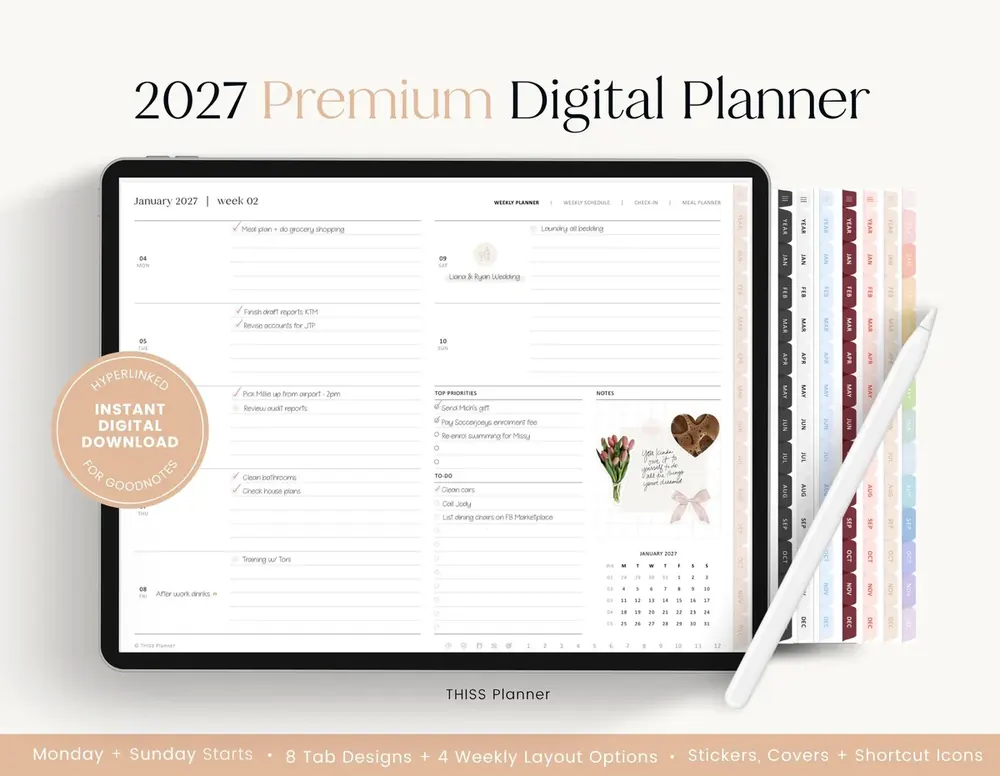
So you’ve found a planner you love, and then the listing asks you to choose. Portrait or landscape?
Ugh, decisions!
Choosing a portrait or landscape digital planner seems like such a small thing, but it shapes every single page you’ll write on for a whole year. And it’s really hard to picture before the planner is actually on your iPad.
Don’t worry, I’ve got you. In this guide I’ll compare the two in practical terms: how you hold your iPad, how much room you get to write, how a keyboard case changes things and how each works with two apps side by side. By the end, you’ll know which one fits the way you plan.
In short
- In most planners, mine included, both versions have the same pages and links. Only the shape of the page changes.
- Choose portrait if you usually hold your iPad upright, like a notebook. It’s the more popular shape with our customers.
- Choose landscape if your iPad usually sits sideways, in a keyboard case or on a stand.
- Still not sure? Go with the way you hold your iPad most often.
What’s the difference between a portrait and landscape planner?
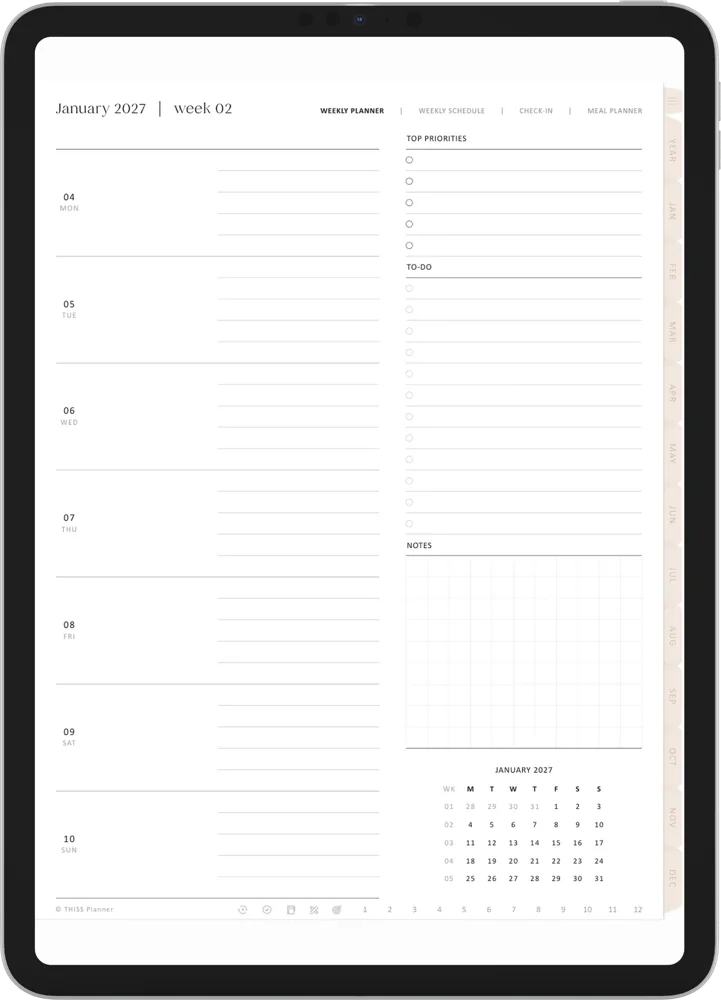
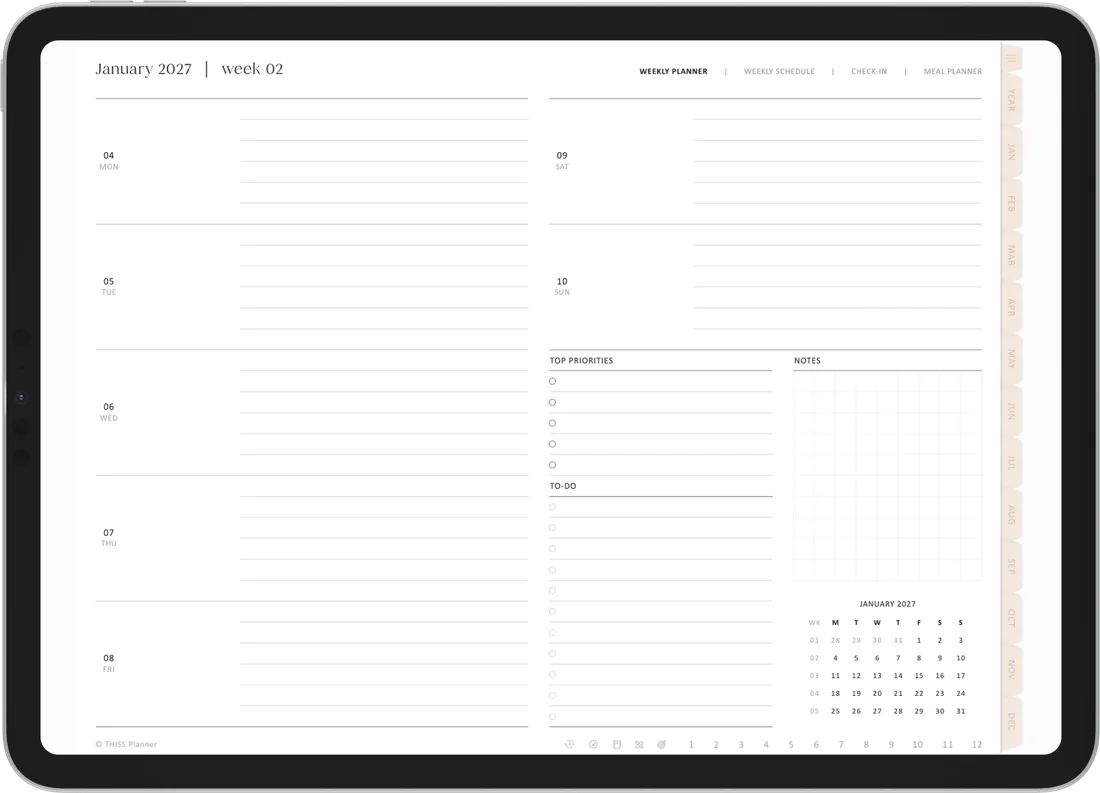
A portrait planner has tall pages made for an iPad held upright. A landscape planner has wide pages made for an iPad turned on its side.
In my planners, what’s inside is exactly the same in both: the same yearly, monthly, weekly and daily pages, and the same extras. If you’re looking at another planner, it’s worth checking the listing says the same.
What changes is how each page is arranged. On the portrait weekly page, the days run down the left, with priorities, a to-do list and notes on the right. In landscape, the week spreads across two columns, more like an open paper planner.
Choose by how you hold your iPad
The simplest test is the one in our FAQs. Pick the way you usually hold your iPad!
For a few days, just notice how you hold it when you read, write or check something quickly.
- Portrait suits you if you hold the iPad in your hand or on your lap, carry it from room to room, or like the feel of a paper notebook.
- Landscape suits you if the iPad mostly sits on a desk or stand, or you already use it sideways for work, video calls or films.
For me, I’ve always found writing more comfortable with my iPad in landscape (I mentioned it in my handwriting tips too). But that’s just me! Portrait is the more popular shape with our customers, and your own habit matters more than anyone else’s. A planner that matches how you already hold your iPad is one you’ll open without even thinking about it.
Writing space in portrait and landscape
Each version is made to fill the screen when the iPad is held its way, so the real difference is the shape of the space.
- Portrait gives taller, narrower spaces. Each day gets its own band down the page, which suits short lists and quick notes.
- Landscape gives wider spaces. Lines run longer across the page, which suits full sentences and larger handwriting.
If you turn the iPad the other way from your planner, you either see a smaller page or have to scroll to see all of it. That’s the main reason to match the planner to how you hold your iPad.
Whichever you choose, turn on Rotation Lock in Control Center so the page doesn’t turn while you write. It saves a lot of frustration!
Using a digital planner with a keyboard case or stand
Keyboard cases usually hold the iPad sideways. If yours stays on most of the time, or you type into your planner as often as you write, landscape means you never have to take the iPad out of its case to plan.
Portrait works best when you write with an Apple Pencil and take the iPad out of its case, or use a folio cover that folds flat behind it. A stand works for both, as long as it can turn the iPad the way your planner faces.
Planning with another app side by side
Putting two apps side by side (called Split View on older iPads) is handy for copying dates from a calendar, keeping a recipe open while you plan meals, or dragging stickers from Files onto your page.
With the iPad held sideways, each half of the screen becomes a tall, narrow window. A portrait page fits that shape really well, so you can see the whole page with another app beside it. A landscape page shrinks to fit the narrower width. If you often use two apps side by side, portrait is often the easier choice, even on a sideways iPad.
Still not sure? Ask yourself these questions
Grab your iPad and answer these honestly. It only takes a minute!
- When I check my calendar, is my iPad upright or sideways?
- Does my iPad live in a keyboard case most of the time?
- Do I write with an Apple Pencil, or type into my planner just as often?
- Do I often have two apps open side by side?
- Do I write short lists, or longer sentences?
Mostly upright, Apple Pencil, two apps side by side and short lists? Go for portrait. Mostly sideways, keyboard case and longer sentences? Landscape is your friend.
Common questions
Can I switch later?
You can, but your handwriting stays in the copy you wrote it in, so switching partway through the year means starting fresh. That’s why it’s worth trying a page in both shapes before you start.
Is the content the same in both versions?
In mine, yes. Both have the same pages, links and extras. Only the page shape is different.
Do the links work the same way in both?
Yes. Every year, month, week and day is linked, with side tabs to any month. In Goodnotes, switch on Read Only Mode to use them, and in Notability choose the Hand tool. Our guide shows how the links work.
So, portrait or landscape?
If you hold your iPad upright, choose portrait. If it lives sideways in a keyboard case or on a stand, choose landscape. If you plan with two apps side by side, portrait often fits better. Either way, the planner inside is the same.
Still on the fence? Download a free portrait and landscape sample from the free library and write on both. You’ll know pretty quickly which one feels right!
Keep reading: Digital planning for beginners, 10 reasons why I switched to digital planning and How to keep all your plans in one digital planner.