Have you ever started January with a brand new planner and the best intentions, only to find it sitting unopened in your library by February?
Yep, it happens to the best of us!
A busy stretch comes along, you skip a few days, and suddenly opening your planner feels like catching up on homework. So you don’t.
The good news is that it’s much easier to stick with your digital planner when it’s quick to open and simple to come back to. Below are six small habits that help, and each one uses a feature that’s already in your planner.
In short
- Put your planner one tap away with a widget or a custom Home Screen icon.
- Keep two small rituals: a daily check-in and one weekly planning moment.
- Use the weekly layout that suits how you think, and mark small wins with stickers.
- Back up once a month so months of handwriting stay safe.
Open your planner faster with a widget or Home Screen icon
Out of sight really is out of mind. If you have to go hunting for your planner every time, you’re far less likely to open it. So put it on your Home Screen, one tap away.
Goodnotes Favorites widget
- Add the planner to your Goodnotes Favorites.
- Touch and hold an empty area of the Home Screen until the icons jiggle.
- Tap Edit or the + button, choose Add Widget, then find Goodnotes and select its Favorites widget.
- Tap Done, then tap your planner in the widget to open it.
A custom icon with Shortcuts
Want your planner to have its own pretty icon? Use any image you like, or an icon set made for planners. To set one up with Goodnotes:
- In the Shortcuts app, tap + and add the Goodnotes Open Document action.
- Choose your planner, then tap Play to test it.
- Open the shortcut’s Details, tap Add to Home Screen, then tap the icon and choose a planner icon PNG from Files.
Using Notability? Add the Notability widget and select your planner note. Our guide has the steps for both apps.
Start a daily check-in habit
A daily check-in is just a few quick prompts. Mine has a start of day entry (today’s affirmation, what I’m grateful for and what would make today great) and an end of day entry (things that made me smile, something I accomplished and what could have made today better).
Now, you do NOT have to fill in every line. Treat it as a two-minute habit. Even one line counts!
Pair it with something you already do each day, such as your morning coffee or getting into bed. If you miss a day, leave it blank. Use the side tabs to jump to this month, tap today’s date and carry on from there.
Stuck for an affirmation? I’ve shared 25 daily affirmations, including a few of my favorites. And if you like the idea of tiny habits, I’ve written about how Atomic Habits helps me plan every day.
Set one weekly planning moment
Choose one time each week to plan the week ahead, and keep it like an appointment. If your planner comes in Monday and Sunday start versions, pick the one that matches when your week really begins.
- Open the weekly planner and write the week’s top priorities.
- Add appointments to the weekly schedule.
- Fill in the meal planner for the week.
- Look over last week’s check-in and carry over anything unfinished.
Fifteen minutes is plenty. With the week already on the page, your daily check-ins stay short. If you’d like the full routine, here’s how to plan your week in a digital planner.
Pick the weekly layout that suits you
If a layout feels cramped or messy, it’s so easy to give up on the whole planner. I get it! I’m quite particular about layouts myself, which is how I ended up designing my own planner in the first place.
So if a layout isn’t working for you, try a different one before you give up on planning altogether. A vertical week suits days built around times and appointments, a horizontal or lined week suits lists, and a boxed week gives each day its own little space.
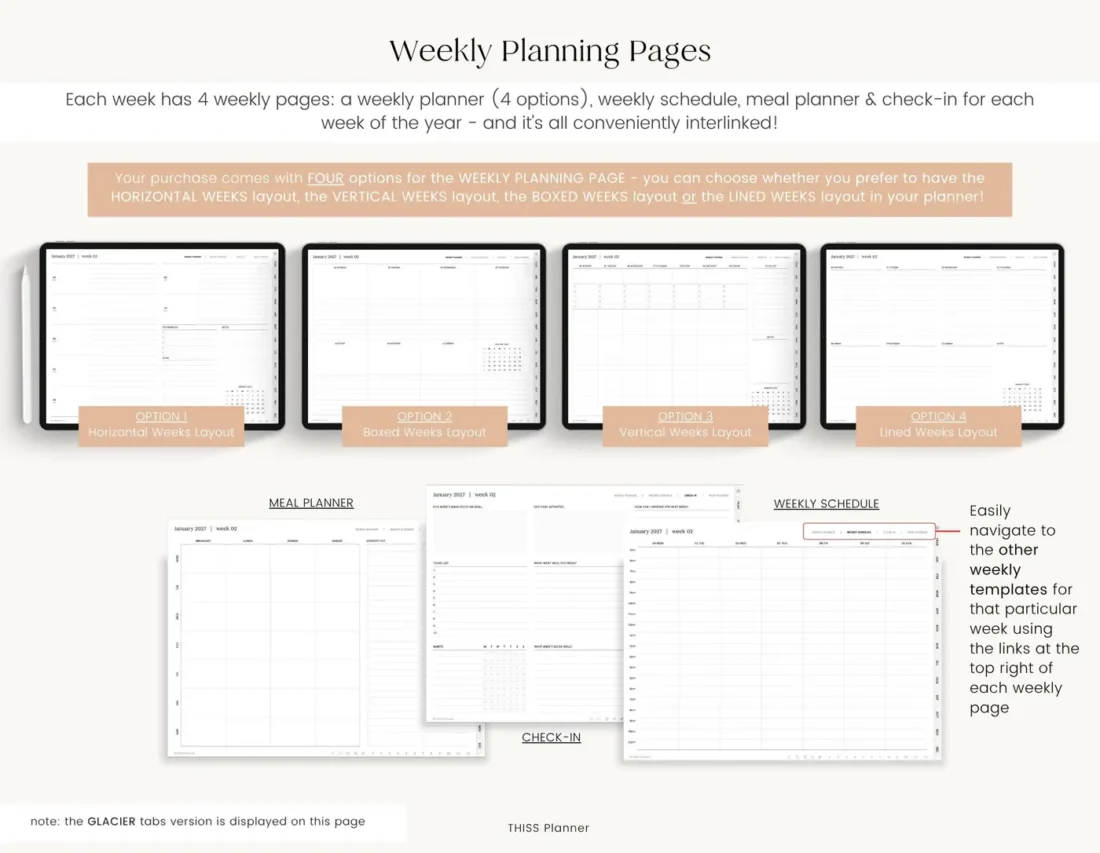
If your planner comes with more than one layout, plan a sample week in two of them before you commit. You can switch whenever you like, but your handwriting stays in the copy you wrote it in, so it’s easiest to settle on one early.
Celebrate small wins with stickers
A sticker on a finished task or a good day is a small reward that makes your planner nicer to open.
Confession time. Back when I used paper planners, I hoarded my stickers because I was too scared to “waste” them! Digital stickers can be used over and over again, so go ahead and use them.
Most digital stickers come as PNG files, and some also come as a ready-made Goodnotes sticker file. To add a PNG:
- Goodnotes: place a PNG with the Images tool, then select it and choose Add Element to save it to a collection such as THISS Stickers.
- Notability: choose Image or Add Media, then select the PNG from Photos.
Use the same sticker for the same win each time, such as a workout done, so a glance at the month shows how often it happens. See sticker steps for both apps.
Back up your planner once a month
A few months in, your planner holds a LOT of handwriting. Cloud sync keeps your devices matched, but a mistaken deletion can sync too, so keep a separate backup. Do it when you fill in your monthly reflection page:
- Return to the Library so the app can finish saving.
- Export the planner in its native format, if your app offers it.
- Export a PDF for easy viewing.
- Save both to a cloud folder named THISS Planner Backups.
- Check that both files open.
There’s more detail in our backup guide.
Common questions
What should I do if I fall behind?
Skip the empty days and start again from today. A dated planner doesn’t need you to catch up, I promise!
Can I add pages if the planner feels too fixed?
Yes! You can add, copy or move pages in Goodnotes and Notability, so pop in a notes page wherever you need one. Just duplicate the planner before you move any original pages, so the links stay in order.
How long should a daily check-in take?
Two minutes is plenty. If it starts to feel like a chore, fill in fewer prompts, not fewer days.
Make it easy to come back
None of these habits takes long. Start with just one this week, perhaps the widget, and add the next one when it feels easy. Little by little, opening your planner becomes part of your day.
Keep reading: How to plan your week in a digital planner, How Atomic Habits helps me plan every day and How to set goals you will actually achieve.