Are your plans scattered all over the place?
Appointments in one app. The to-do list in another. The budget in a spreadsheet, and this week’s dinners on the back of an envelope. Each one works fine on its own, but together they make it really hard to see your week at a glance, and something always slips.
I hear ya! That’s exactly why I love an all-in-one digital planner. Everything lives in ONE hyperlinked file on your iPad, so you open one thing instead of five.
In this post I’ll walk you through setting up each part of your life in one planner, section by section. I’ll show you the pages I use, but you can follow along with any hyperlinked planner.
In short
- One hyperlinked planner can hold your calendar, to-do lists, budget, meal plans and self-care pages, so you open one file instead of five apps.
- Dates go on the yearly and monthly pages. Tasks go on the weekly and daily pages.
- Money goes on the finance pages and trackers, and meals go on each week’s meal planner.
- Use the tabs and links to jump between sections instead of scrolling.
How one hyperlinked planner replaces several apps
A quick refresher first. A digital planner is a PDF that you write on in a note-taking app such as Goodnotes or Notability. (New to all this? My digital planning for beginners guide covers the basics.)
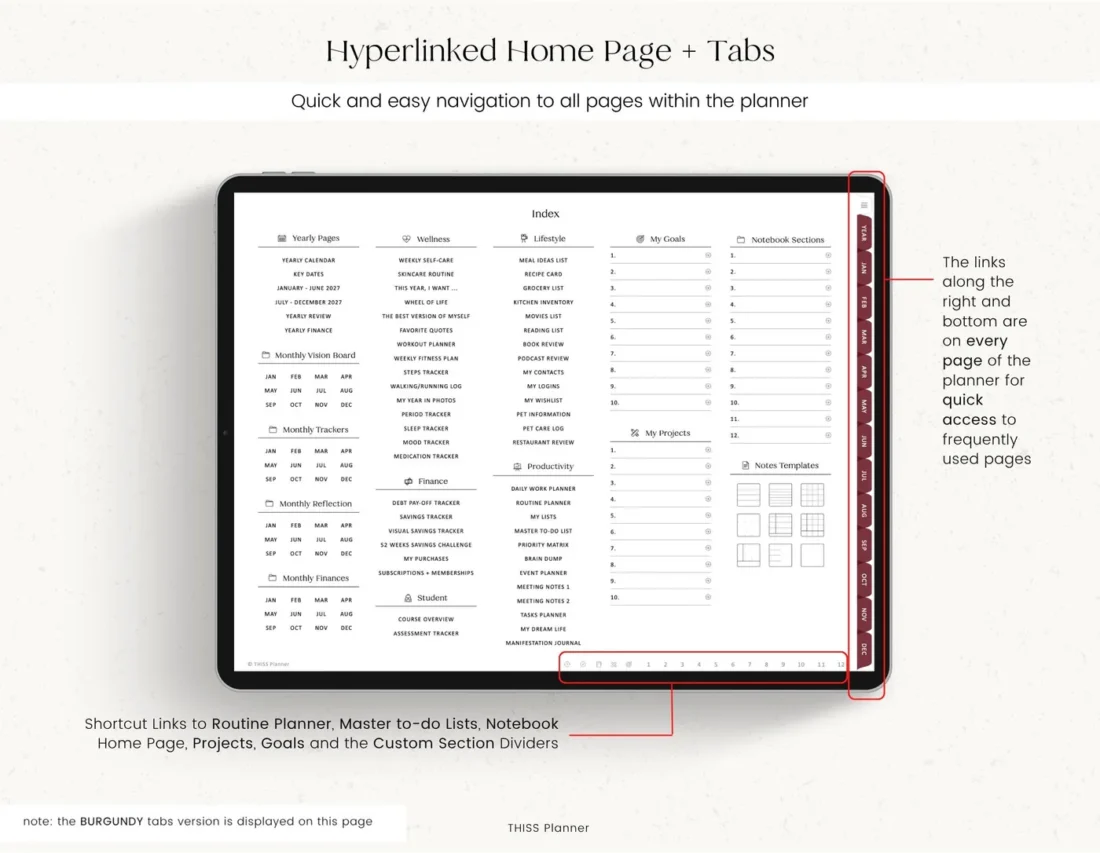
The links are what let one planner hold everything. In a good hyperlinked planner, every year, month, week and day is linked, and side tabs take you to any month from any page. So even a planner with over 1,000 pages never has you flicking and scrolling to find a date.
Think of the contents page as your map. Tap a section to open it, then use the tabs to get back. In Goodnotes, switch on Read Only Mode first so a tap follows the link. In Notability, choose the Hand tool before you tap. Here’s how the links work if you’d like the full steps.
How to use a digital planner as your calendar
Start with your dates, because everything else hangs off them.
- Yearly pages: the linked calendar, yearly overview and year at a glance are the spot for birthdays, holidays and other big dates.
- Monthly pages: each of the 12 months has a monthly planner and overview for appointments, school events and due dates.
- Weekly schedule: every week has its own schedule page for the busier weeks.
The monthly pages work as a little hub, too. Tap a date to open that day’s planning page, or jump straight to that week’s planner, schedule, check-in and meal planner from the same page.
Both Monday and Sunday start versions are included, so choose the one that matches how your week runs.
A tip from my paper planner days: I used to color-code everything, with one color for personal stuff, another for studies and another for work. The hard part was finding pens in the exact colors I wanted! In Goodnotes you can choose the exact color for your pen or highlighter, so give each area of your life its own color and stick with it. Your month will make sense at a glance.
How to keep your to-do lists in one place
Lists are where scattered planning hurts the most. How many times have you written a to-do list, then couldn’t find it when you needed it?
The fix is to give each kind of list its own home.
- This week: the weekly planner has room for your top priorities and a to-do list right beside your days.
- Today: the daily planners hold the days that need more detail, with a schedule, top priorities and a to-do list.
- Someday: the master to-do list, my lists, brain dump and priority matrix catch the tasks that don’t have a date yet.
- Bigger plans: the My Projects and My Goals sections and the event planner keep longer plans together.
Once a week, move anything with a date from the master list onto the right week. That stops the master list turning into one more place you forget to check. I go through this step by step in how to plan your week in a digital planner.
How to track your budget in a digital planner
Money pages work really well next to your calendar, because that’s where pay days and due dates already sit. Pages worth having:
- Yearly finance and monthly finance pages
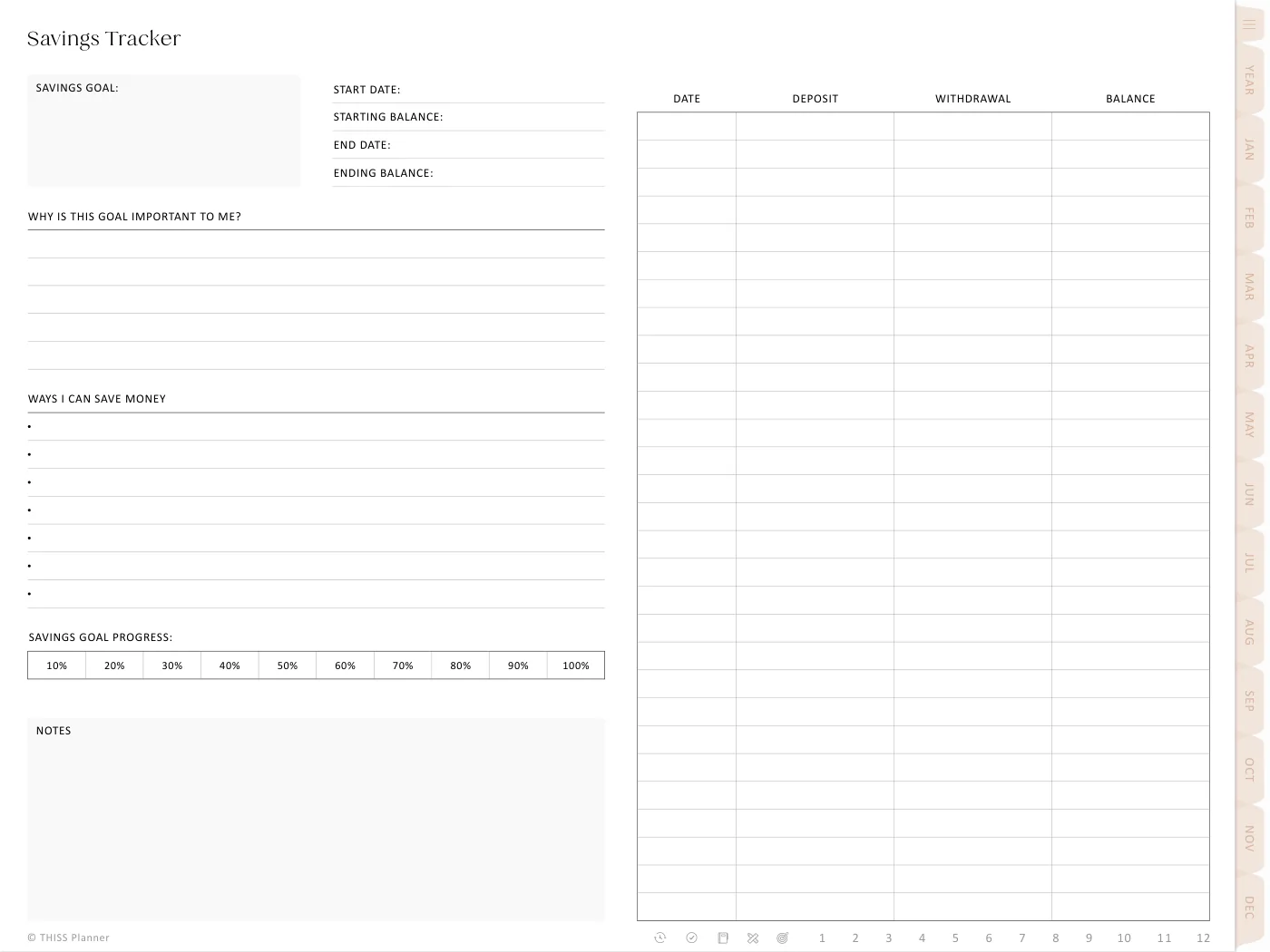
- A savings tracker (plus a 52-week savings challenge, if you like a challenge)
- Debt pay-off and debt snowball trackers
- A purchases log, plus a subscriptions and memberships page
Fill in the monthly finance page when you plan the month, then look at it again when the month ends.
And please don’t skip the subscriptions page! Renewals are SO easy to forget when they only live in your inbox. Writing them all on one page makes it much easier to spot the ones you don’t use anymore.
How to meal plan in a digital planner
A meal planner page for every week keeps dinners right next to the week you’re cooking for. A few other pages make it even easier:
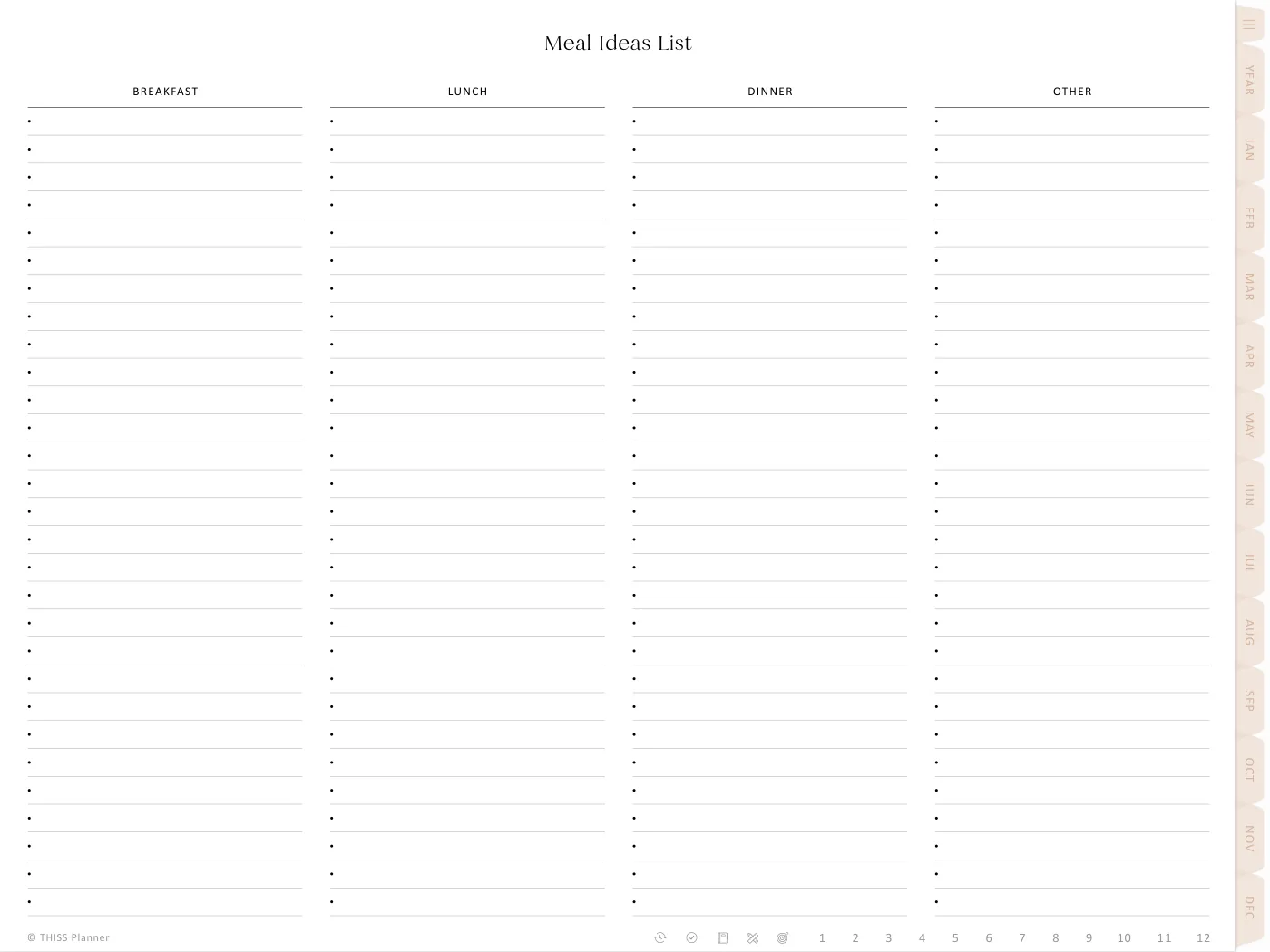
- Build a meal ideas list of breakfasts, lunches and dinners your household likes.
- Save favorite recipes on recipe cards.
- Fill in the week’s meal planner from your ideas list.
- Check the kitchen inventory, then write what you need on the grocery list.
Once your meal ideas list is filled in, planning the week is mostly a matter of copying from it. So much easier than staring at a blank page wondering what’s for dinner!
Where self-care, habits and the rest of life fit
The pages that usually end up in yet another app can live here too.
- Wellness: weekly self-care, a sleep tracker, mood tracker, workout planner and journal prompts.
- Productivity: habits and trackers, plus a routine planner.
- Lifestyle: the little things you need to find again, like a reading list, my contacts, pet information and a wishlist.
Need a page your planner doesn’t have? Add a blank or lined notes page and make your own section. Being able to add pages whenever I like is still one of my favorite things about digital planning!
Common questions
Can I add more pages if I run out of room?
Yes. You can add, copy or move pages in Goodnotes and Notability. Duplicate the whole planner before moving original pages, because moving a linked page can change where a tab takes you. See how to manage pages.
Will such a big planner slow down my iPad?
Give it a little time after you import it. Let Goodnotes finish processing the PDF before you add lots of stickers or written pages. If the app is slow or closes, restart your iPad, update the app and give the PDF time to load.
Which apps work best for a hyperlinked planner?
Goodnotes and Notability are the most popular, and most PDF note-taking apps that support a stylus work too, such as Noteshelf and ZoomNotes. I’d skip OneNote for planners, though, as the links don’t work there.
Start with one section
You don’t need to move your whole life over in one weekend. Start with the part that feels the most scattered, maybe the calendar or the meal plan, and add a new section each week until those other apps go quiet.
Want to see how an all-in-one planner feels before you move everything over? Try one of the free planner samples in the free library for a week or two.
Keep reading: How to plan your week in a digital planner, How to stick with your digital planner all year and Portrait or landscape digital planner: which suits you?